Transcribana
Generate Subtitles from Audio or Video (SRT & VTT)
Create original-language SRT or WebVTT subtitles from a recording. Review model-estimated timing and export locally without uploading your media.
Start transcribingStart transcribing
Best supported on current desktop Chrome. Codec support, speed and memory vary by browser and device. Mobile transcription is not guaranteed.
Drop an audio or video file here
Interviews, meetings, lectures, and everything worth keeping.
Audio and video files are processed locally in your browser.
Supported file formats
MP3, WAV, M4A, AAC, FLAC, OGG, OPUS, MP4, MOV, WebM, MKV, M4V and 3GP with supported audio codecs. Files are checked locally. AVI, WMA and MPEG/MPG program streams are not supported. Codec support varies by browser.
Transcription runs locally in your browser. Your audio and video are not uploaded to our servers.
Auto Detect uses the opening audio to choose one spoken language. Accuracy varies by language and recording. Amharic transcription is currently unavailable because it can produce incorrect text. Review every transcript against the recording.
Advanced settings
Models download on first use. A loaded model is reused; change model or processing mode to release it.
Choose a recording to get started.
Progress will appear here.Your words, ready to use.
Document edits apply to copied text and TXT. Subtitles and JSON preserve the original timed transcription.
Processing details
Timestamps are model estimates. Total RAM and GPU memory are not available to this page; use your browser’s task manager.
Arabic uses a dedicated model with about 1.33 GB of weights and CPU/WASM processing. The first run may take several minutes. General model and GPU choices do not change the Arabic model.
Automatic subtitles still need a readability check
A subtitle generator estimates speech timing; it cannot guarantee a comfortable reading pace or identify every speaker correctly. Preview SRT or VTT with the exact source video and check overlaps, line length and names. You can translate generated timed segments directly, or import an existing subtitle file without uploading a video. Translation changes cue text while retaining the original sequence and timestamps; it does not repair synchronization.
Before you start
Transcribe the recording, then open the Subtitles view. It shows the original speech segments and model-estimated timestamps. Review cue boundaries against your video before publishing.
A workflow that fits your file
Export SRT for common editor workflows or VTT for web video. No extra inference is needed to switch between these formats. Segments with missing or invalid times are excluded from timed exports and remain in text and JSON.
Review and use the result
This is a starting subtitle track, not a finished caption-editing suite. Speaker labels, sound-effect descriptions, line-length styling and burned-in captions are not generated. Correct readable text separately; subtitle exports retain the original wording.
Create captions from speech, then review them in context
Select the final audio or video, transcribe, and open Subtitles to inspect recognized text with its times. Download SRT or VTT for the destination player. This produces same-language speech captions; it does not translate, identify speakers, label sound effects or burn text into the video.
Check whether a cue appears when its words are audible and stays readable. Recognition segments are not a professional caption layout. Document edits do not flow into these cues. The subtitle format guide explains what each export contains; podcast publishing guidance covers keeping the timing aligned to a final edit.
How it works
Upload
Choose an audio or video recording from your device.
Transcribe
Select the spoken language and let the required model load.
Edit
Review the words against your recording and edit the readable text.
Export
Copy text or download TXT. SRT, VTT and JSON preserve the original timed result.
Your recording never needs to leave your device.
Speech recognition and text checking run locally. The website and model files still need network access. Hosting and model providers can receive ordinary connection information; they do not receive your recording through this tool.
Understand local processingQuestions, answered
Does my recording get uploaded?
No. The browser reads and transcribes it locally. Website assets and model downloads use the network separately.
Can I use it offline?
A model already loaded in an open page can be reused offline. Reloading, switching models or clearing storage may require network access.
Will text corrections change my subtitles?
No. Copy Text and TXT use the selected document version. SRT, VTT and JSON keep the original timed transcription.
Related tools
Useful guides
Arabic Transcription: Review Dialect, Meaning and Subtitles
A practical Arabic review workflow for dialect words, names, negation, numbers and mixed-direction text, without silently rewriting the speaker.
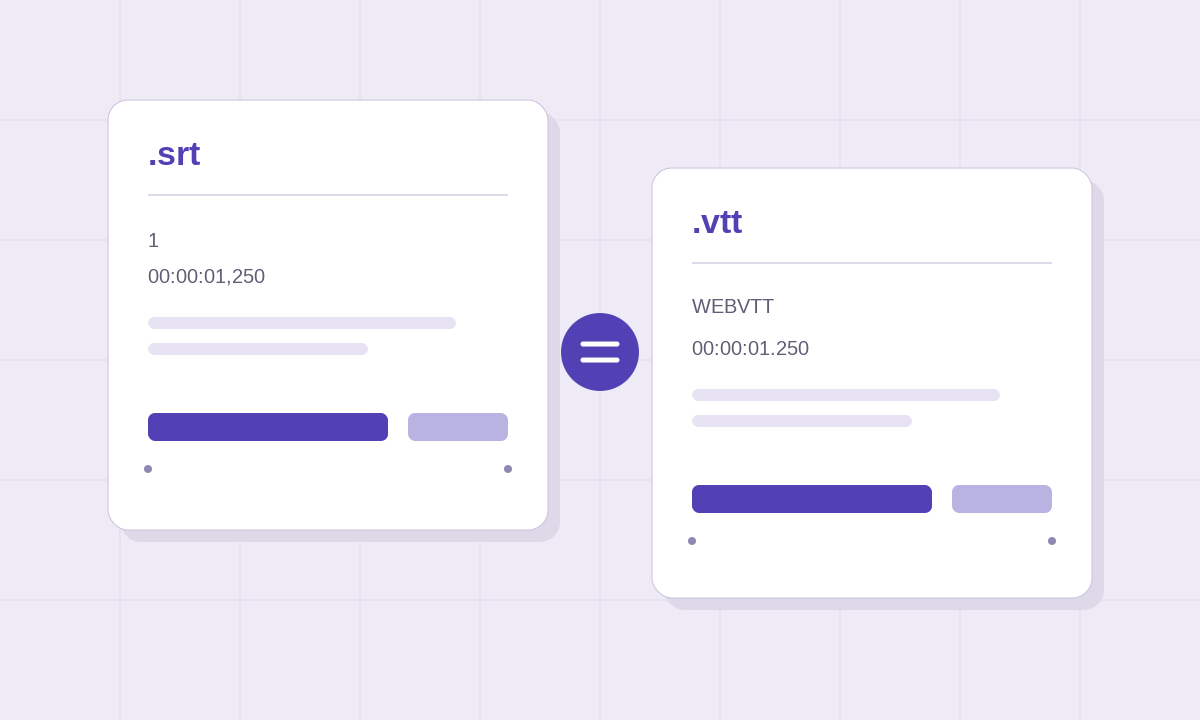
SRT vs VTT: Differences, Examples and Which to Use
Compare SRT and WebVTT with matching examples. Check subtitle syntax, understand Transcribana exports and review common problems before publishing.
From Automatic Subtitles to Captions People Can Follow
Review words, cue timing, reading effort and meaningful sounds. Understand what an automatic subtitle export provides and what still needs human editing.
Edit an SRT File Without Losing Its Timing
Review subtitle words and cue boundaries in an external editor, preserve a safe original and test the saved SRT against the exact recording.
Review Translated Subtitles Before Sharing
Check translated subtitle meaning, names, negatives and reading time against the source. Keep reviewed translation separate from the original transcript.
Play SRT Subtitles in VLC: Step-by-Step Guide
Load an external SRT subtitle file in VLC, check synchronization and characters, and fix missing or misaligned subtitles without changing your video.
Transcription vs Translation: What’s the Difference?
Understand when to transcribe speech, when to translate text or subtitles, and how each workflow handles language, timing, editing and review.

Speaker Labels in Transcription: How to Identify Speakers Manually
A practical method for labeling speakers in a multi-person transcript, including formatting, overlap, pseudonyms and the limits of automatic diarization.
Transcription Timestamps and Timecodes: A Practical Guide
Understand subtitle timestamps, SRT and VTT time formats, why automatic times drift, and how to check cue boundaries before publishing captions.
Common Transcription Errors and How to Correct Them
Recognise the predictable mistakes in automatic transcripts — names, numbers, negation, homophones and invented text — and correct them without changing meaning.
Translate SRT and VTT Files Without Breaking the Timing
Translate subtitle cue text while keeping the original timestamps, then check expansion, cue structure and playback before publishing.
Transcribing Multilingual Recordings: Language Switching and Review
Choose one recognition language, split genuinely bilingual sections, review quoted foreign phrases and translate only after transcription.

Transcript Quality Assurance: A Client-Ready Review Workflow
Define acceptance criteria, sample the risky passages, grade errors and deliver a versioned transcript with a clear review log.
Subtitles Out of Sync: Diagnose Offset, Drift and Player Problems
Find out whether subtitles are early, late, drifting or using the wrong file, then choose between a safe offset, a retime or a fresh export.