A timestamp tells a reader or a player when a passage begins and ends. In a transcript it helps someone find a quotation. In a subtitle file it decides when words appear on screen. Those two uses are related but not identical, and confusing them leads to captions that look correct in a text editor but fail when played. This guide explains the formats, the limits of automatic timing and the checks that catch real problems.
A transcription with timecode links each line to a moment in the recording, so review and subtitle checks start from the right place.
Quick answer
Transcribana exports estimated segment times in SRT, VTT and JSON. The times come from the recognition output, not from frame-accurate manual alignment. Use them as a starting point: check cue boundaries against the recording, fix obvious overlaps or invalid values in a subtitle editor, and never treat an estimated timestamp as proof of when something happened.
What a timestamp actually records
A subtitle timestamp records a display interval: when a cue becomes visible and when it disappears. It does not record when a word was cognitively understood, when a speaker started a thought or when an event happened outside the recording. A transcript timestamp usually marks a recognized segment boundary, which may fall slightly before or after the audible pause.
This distinction matters when you quote a recording. “At 00:04:12” is a useful locator, but it is not a legal or scientific measurement unless the timing has been verified with a suitable method. If precise synchronization is required, check the source in a player or editor that displays the same clock and frame rate as the deliverable.
The formats you will meet
On a narrow screen, scroll the table sideways to read every column.
| Format | Typical shape | Where it appears |
|---|---|---|
| SRT | 00:00:01,123 --> 00:00:03,456 | Subtitle interchange, many editors and players |
| WebVTT | 00:00:01.123 --> 00:00:03.456 | HTML video tracks and web players |
| Clock time | 00:04:12 | Notes, quotations and transcript locators |
| Frame timecode | 01:00:12:15 | Video editing and broadcast workflows |
| Seconds | 12.345 | APIs and some JSON workflows |
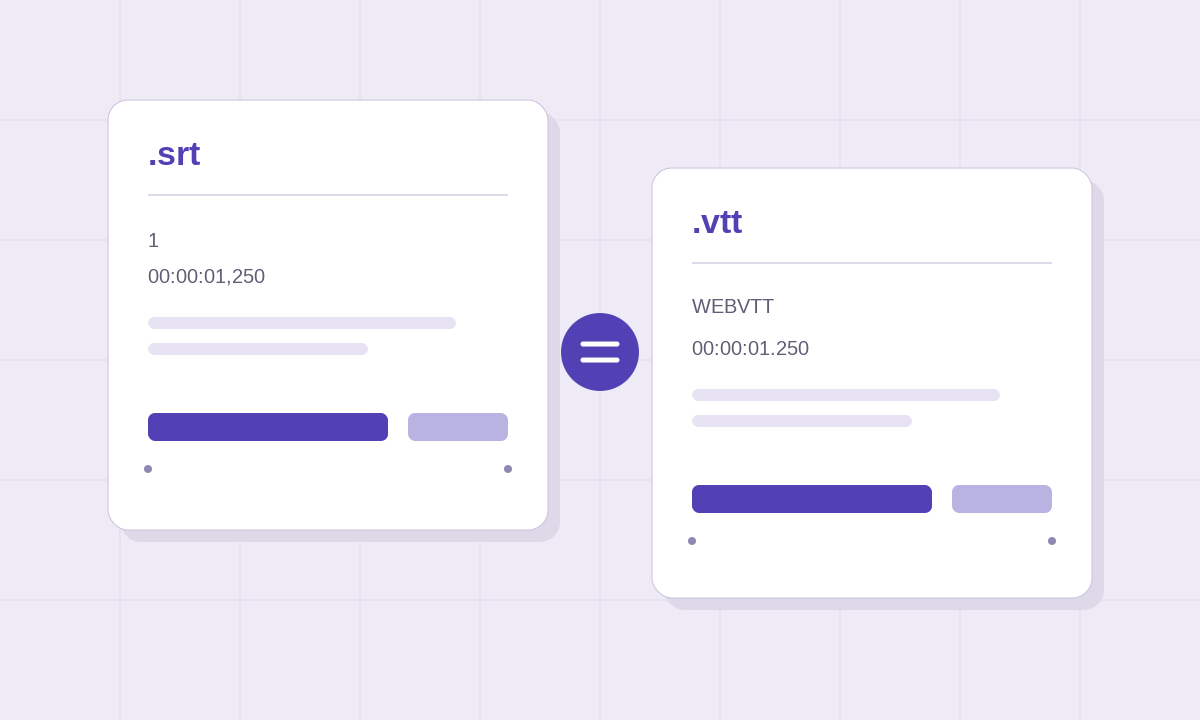
SRT uses a comma before the milliseconds. WebVTT uses a period. Both normally use hours, minutes, seconds and milliseconds. A WebVTT file begins with a WEBVTT header and may omit the hours field when the duration is under one hour. Mixing the two separators inside one file is a common reason a player rejects an otherwise readable subtitle.
Why automatic timestamps drift
Speech recognition produces segments from acoustic evidence. A segment may begin at the first detected word, at a pause, or at a boundary chosen by the model. Music, noise, overlapping voices, quiet speech and long pauses can move that boundary. The result is usually close enough for reading, but it is not a forced alignment of every word.
Drift can also accumulate. If the recording contains silence that the model handles differently from the player, or if the file was edited after transcription, later cues may be progressively early or late. A single constant offset is easy to correct; growing drift usually means the audio and the subtitle file no longer describe the same timeline.
Reading timestamps for notes and quotations
Use the timestamp as a locator, not as decoration. In a transcript, a timestamp before a passage lets a reviewer jump to the audio. In notes, record the time of the passage you actually want to quote, then check the first and last words against the recording. If you edit the quotation, keep the original locator so the source remains traceable.
Copy Text and TXT follow the selected readable document and do not automatically insert a timestamp on every line. If your workflow needs times in plain text, read them from the SRT, VTT or JSON export, or add them manually from the player. Do not present a manually added time as if the recognizer had verified it.
Converting SRT to VTT without changing the timing
A format conversion should change syntax, not the underlying display interval. The example below keeps the same two cues. Only the header and the millisecond separator change. A converter that also rounds, reorders or “improves” the times is doing more than a format conversion, and the result needs a separate review.
1
00:00:01,123 --> 00:00:03,456
We started in March.

2
00:00:03,456 --> 00:00:06,200
Not in March — April.WEBVTT
00:00:01.123 --> 00:00:03.456
We started in March.
00:00:03.456 --> 00:00:06.200
Not in March — April.Transcribana exports plain timed text in both formats. It does not create advanced WebVTT regions, styling or per-cue positioning. If your destination needs those features, add them in a subtitle editor after the export and test the file in the actual player.
Checking cue boundaries
- Play the first minute and the last minute, where timing problems often show up.
- Check that each cue appears with the speech it transcribes, not before or after it.
- Look for zero-length cues, end times earlier than start times, and cues that overlap in a way the player cannot display.
- Check that a cue does not remain on screen after the speaker has moved to a new idea.
- Read the longest lines at normal speed and confirm there is enough time to finish them.
- Test the file in the player or platform where it will actually be published.
A cue can be technically valid and still uncomfortable to read. As a rough check, divide the number of characters in the cue by its duration in seconds. Compare the result with the reading-speed guidance used by your platform or accessibility standard. The useful question is whether a viewer can finish the line before it disappears, not whether the file passes a syntax check.
Shifting versus retiming
If every cue is late by the same amount, a constant offset may fix the file. If early cues are correct but later cues drift, a single offset will make one end worse. In that case, compare the subtitle timeline with the recording and fix the cue boundaries in a subtitle editor. Do not stretch the entire file to hide a missing or duplicated section of audio.
Transcribana does not provide a visual timing editor. It reports invalid timing instead of inventing replacement values. Use an external subtitle editor for offset changes, splitting, merging and boundary adjustment, then re-export and test the result. Keep the original file until the new version has been checked.
Frame timecode is a different tool
Video editors often display timecode as hours, minutes, seconds and frames. The meaning of the last field depends on the project frame rate, and some broadcast workflows use drop-frame counting for rates such as 29.97 or 59.94 frames per second. Subtitle timestamps are clock times in milliseconds, not frame counts. Do not paste a frame timecode into an SRT file and assume it will behave as a subtitle time.
If you need frame-accurate synchronization, work in the editor that owns the project timeline and confirm the frame rate and drop-frame setting. Export subtitles from that workflow, then test the exported file. Transcribana’s exports are intended for timed text, not as a replacement for a broadcast timecode workflow.
What Transcribana exports
SRT, VTT and JSON preserve the original recognized segments and their estimated times. Copy Text and TXT follow the selected readable version and do not carry the timed segment structure. Editing the document therefore does not retime the subtitle exports. If you correct words in the document and also need corrected captions, make the corresponding changes in the subtitle file and review both outputs.
For format differences, read SRT vs WebVTT. For safe editing, see how to edit an SRT file without losing its timing. For caption readability, read from automatic subtitles to captions people can follow. If the recording itself will not transcribe, use the troubleshooting guide instead of changing time settings.