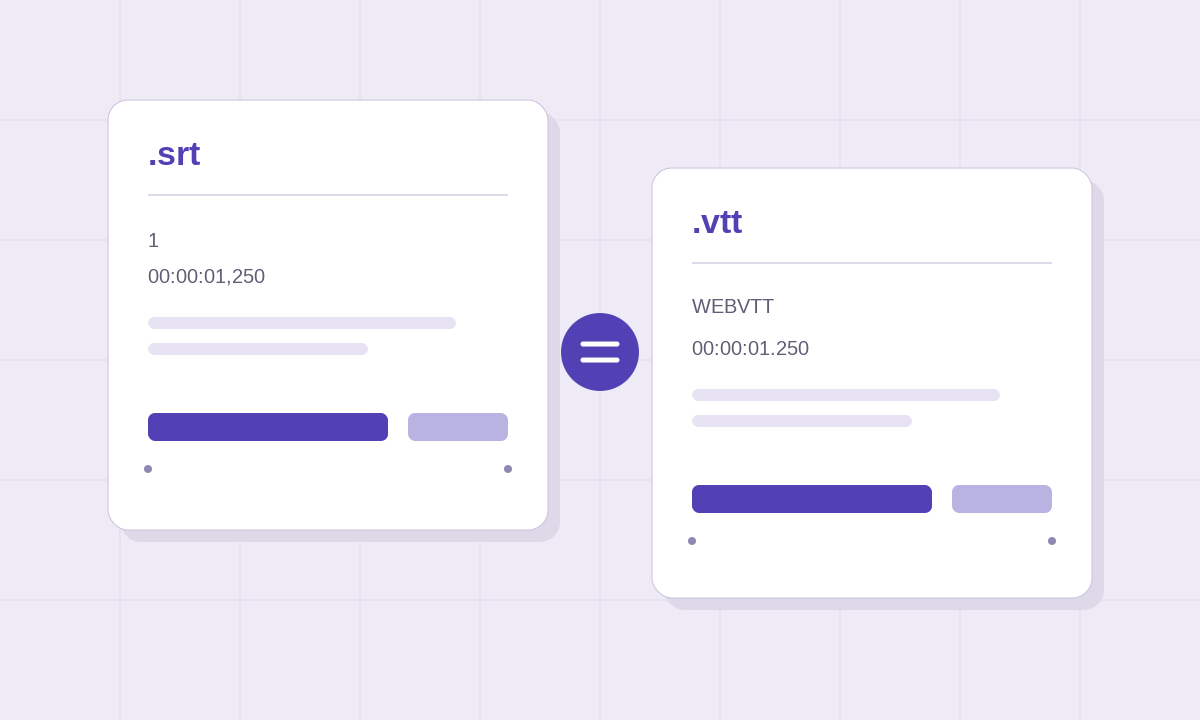
Choose the subtitle format your destination accepts. If a video editor or publishing service asks for an SRT file, export SRT. If you are preparing a text track for an HTML video player, WebVTT is the relevant web format: check the player’s requirements and export VTT. When both are accepted, either can carry the same spoken words and timing. Choosing VTT does not improve recognition accuracy, and choosing SRT does not make the underlying transcript less accurate.
Start with the destination rather than the extension. A downloadable subtitle file is separate from the video: it neither burns words into the picture nor publishes them. The recipient still needs to attach or import that file. This guide compares the formats, then explains exactly what Transcribana exports and what you should check before sharing it.
What changes between SRT and WebVTT?
On a narrow screen, scroll the table sideways to read every column.
| Practical question | SRT | VTT / WebVTT |
|---|---|---|
| How does a basic file begin? | A numbered cue, usually starting at 1 | The WEBVTT signature, followed by a blank line before the first cue |
| How are milliseconds written? | A comma: 00:00:01,250 | A period: 00:00:01.250 |
| Must cues have numbers? | Sequential numbers are part of the usual SubRip structure | Cue identifiers are optional; Transcribana omits them |
| What is its practical role? | Subtitle interchange when the destination accepts SRT | Timed text for web video and other destinations that accept WebVTT |
| Can the format carry presentation information? | Support varies between readers; do not assume styles survive | The format defines cue settings and other features, but player support must be checked |
| What does Transcribana produce? | Numbered, plain timed text | Plain timed text with a WEBVTT header; no generated styles or regions |
The Library of Congress description of SubRip and the W3C WebVTT specification document the structures. A format’s capabilities are not a promise about a particular importer. For example, YouTube’s supported-file documentation specifies basic UTF-8 SRT and says SRT styling is not recognized. Check the current instructions for your own destination instead of assuming that a valid file will behave identically everywhere.
The same two cues in both formats
These are original illustrative sentences, not a transcript from a test recording. The two examples use exactly the same text and time ranges. Their serialized form is checked against Transcribana’s export function; that check does not demonstrate playback in a particular player.
SRT example
1
00:00:01,250 --> 00:00:04,000
Hello, Maya.

2
00:00:04,500 --> 00:00:07,000
Open file A12.
VTT example
WEBVTT

00:00:01.250 --> 00:00:04.000
Hello, Maya.

00:00:04.500 --> 00:00:07.000
Open file A12.
The first cue begins 1.250 seconds into the recording and ends at 4.000 seconds. The next starts at 4.500 seconds, leaving a half-second gap. The numbers 1 and 2 in SRT identify cues; they are not timestamps or speaker identities. Blank lines separate the cues. Keep these annotations outside the subtitle file: explanatory text inserted into a cue can appear on screen.
The examples use hours, minutes, seconds and three millisecond digits in both files. WebVTT also permits some shorter timestamp forms, but there is no need to shorten a working export. Preserve the ordinary characters in the timing arrow and do not replace punctuation with typographic alternatives.
Exporting from Transcribana
Open the subtitle tool and select your saved audio or video file. Choose the appropriate available language setting, then start transcription. Wait for processing to finish before treating the result as a complete transcript. If processing stops early, any available partial result is not evidence that the whole recording has been covered.
Inspect the Subtitles view and compare passages with the recording. Use the SRT or VTT download action according to your destination. The SRT tool and VTT tool lead to the same kind of local transcription workflow; they are not a service for uploading one subtitle format and converting it into another.
Both downloads are assembled from the same original timed segments. Switching export format does not run speech recognition again. The exporter normalizes whitespace inside each cue, so paragraph breaks in the readable document are not a caption-layout specification. It does not automatically create speaker identities, describe sound effects, translate the speech or design finished captions.
Why document corrections do not appear in the subtitle file
Transcribana keeps the readable document separate from the canonical timed result. Copy Text and TXT use the selected original or working document version. SRT, VTT and JSON use the canonical segment data. Editing the document, or accepting a writing suggestion there, does not silently rewrite the timed captions.
For an illustrative example, suppose recognition spells a guest’s name “Mya” and you correct it to “Maya” in the working document. Copying that working version includes “Maya”; the subtitle export still contains the original segment wording. Open the exported file in a suitable subtitle editor and make the verified correction there. Check the recording rather than assuming every writing suggestion matches what was spoken.
Keep the original export and a clearly named reviewed copy. If you later select the original document version for TXT, that export will again reflect the original readable text. JSON is useful for retaining the original segment structure; it is not a backup of every manual document revision. Save the corrected TXT separately when you need it.
An error-and-fix example
This is an illustrative invalid WebVTT timing line: it uses the SRT millisecond separator.
00:00:01,250 --> 00:00:04,000The corrected WebVTT line is:
00:00:01.250 --> 00:00:04.000This fixes the demonstrated timing syntax, not an entire unknown file. A complete VTT file still needs its header, cue text and separation. Renaming a file from .srt to .vtt is not conversion: inspect the contents. Equally, correct syntax cannot repair a wrong word or a cue that is synchronized with the wrong moment.
Troubleshoot the symptom you actually see
Nothing appears: confirm the destination accepts the format, that the track was attached to the correct video, and that captions are enabled. For a web player, a site maintainer may also need to check how the track file is served. Downloading a file from Transcribana does not configure the destination player.
Some words are missing: compare the Subtitles view, readable document and JSON. The exporter omits blank segments and segments without usable timing. A start must be nonnegative and both endpoints must be finite; the end must remain later than the start after rounding to milliseconds. Omitted timed content is not repaired with invented times. Consult the export warning and use the source recording to reconstruct any necessary cue in an editor.
Captions drift after editing the video: check that you are using the same media cut that was transcribed. Removing an introduction or inserting a clip can invalidate later timings. Review the beginning, middle and end, as well as each edited boundary. Do not apply one guessed offset unless you have established that the error really is constant.
A long cue is difficult to read: review wording, duration and line division in a subtitle editor. Export validation is not a readability assessment. The exporter does not sort, resynchronize or certify the whole track simply because its individual times are usable.
Arabic and mixed-direction subtitles
Keep subtitle syntax, file extensions and timestamps in their normal left-to-right order. Keep Arabic words in their natural reading order; never reverse letters manually to imitate a visual arrangement. In an Arabic cue such as “افتح الملف A12.”, inspect the Latin identifier, punctuation and surrounding Arabic together in the actual destination player.
Use UTF-8 when saving an edited copy. Strange characters suggest an encoding problem; unexpected punctuation placement can instead involve bidirectional display. Those are different problems. Do not paste invisible direction controls throughout the file as a blanket fix. The W3C bidirectional-text guidance explains why controls need deliberate use. Preview your specific player and retain an unchanged source copy while investigating.
Before you publish
- Confirm the required format and final version of the video.
- Check that the first and last spoken passages are represented.
- Listen again to names, numbers, negation and uncertain wording.
- Review cue starts and ends, gaps, overlaps and edited boundaries.
- Read captions at normal playback speed rather than only inspecting the file.
- Check any skipped-segment warning and do not mistake partial output for completion.
- Verify Arabic, accents, punctuation and mixed-direction identifiers.
- Save the reviewed subtitle file separately from the original export.
- Attach the reviewed file and test the published player with captions enabled.
If captions are intended to provide access to the audio, assess relevant speaker and non-speech information as well as words. W3C WAI caption guidance explains why automatic output needs human checking. An SRT or VTT extension alone does not establish accessibility. For the earlier recording-to-text steps, see the transcription walkthrough.