An SRT edit has two parts: what the viewer reads and when it appears. A corrected sentence can still be unusable if its cue ends before the speaker finishes. Work on a copy, keep the recording available and decide whether you are changing wording, timing or both. Transcribana generates timed exports and can import SRT files for translation. You can edit translated cue text and export it with the original timestamps. It does not provide a timing editor; the timing adjustments below require an external subtitle editor.
Choose the file that actually needs correction
The readable transcript and the timed subtitle file are different outputs. Editing readable prose in Transcribana does not apply the same edits to canonical SRT or VTT cues. Download the timed file you intend to deliver and open that file in your chosen editor. Keep the original beside the working copy with an explicit version name so you can recover from a mistaken global change.
Use an editor that can open the recording and subtitle file together, expose cue start and end times, save UTF-8 and preview the result. Check these capabilities in its current documentation before using it. This is a requirements checklist, not a claim that every text editor supports synchronized playback. Do not send confidential recordings to an online service without checking its processing and retention practices.
Correct meaning before polishing the line
Listen to the surrounding sentence. Pay special attention to names, numbers and negatives: changing “can” to “cannot” is not a stylistic adjustment. If the sound is unclear, mark the uncertainty in your review notes instead of confidently inventing a word. A subtitle can be concise, but removing a condition or exception may reverse the speaker’s point.
This invented cue demonstrates a wording correction with unchanged times. Assume you have checked the audio and confirmed the negative. The example is not output from a measured recording.
1
00:00:04,200 --> 00:00:07,100
We cannot approve it today.
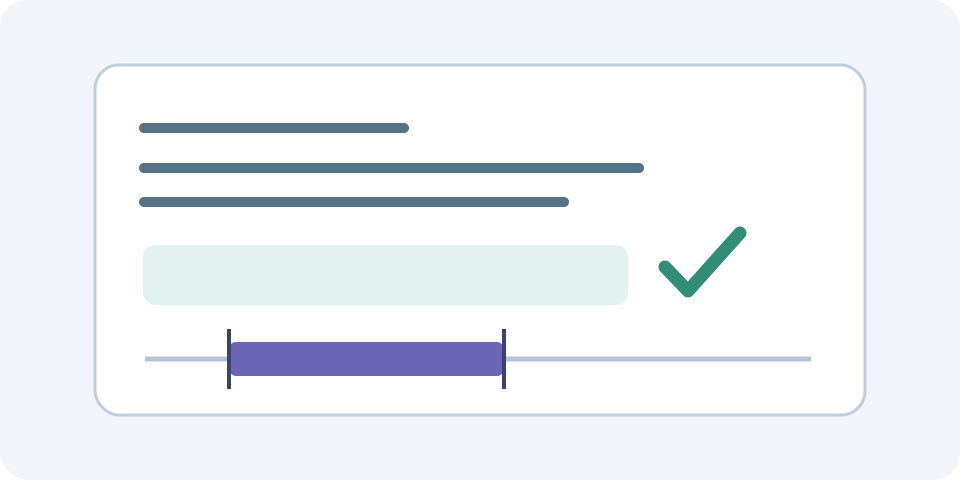
After changing the text, read it during playback. The original duration may no longer be comfortable if you added several words. Do not automatically stretch the cue over the next speaker. Decide whether a different line break, a careful condensation or a boundary change is justified by the recording.
Treat timing changes as a separate operation
For a single late cue, inspect its start and end around the relevant speech. For a whole file that is late by a similar amount, investigate a fixed offset. For increasing drift, check that you have the same video cut and duration. Applying the same offset repeatedly can hide a source mismatch rather than repair it.
Keep start times before end times. Avoid accidental overlaps introduced by moving only one boundary. Where overlapping speech is genuinely important, follow the requirements of the intended player or publishing platform rather than assuming one universal arrangement. Preview the transition into and out of every edited cue.
Save text without damaging the structure
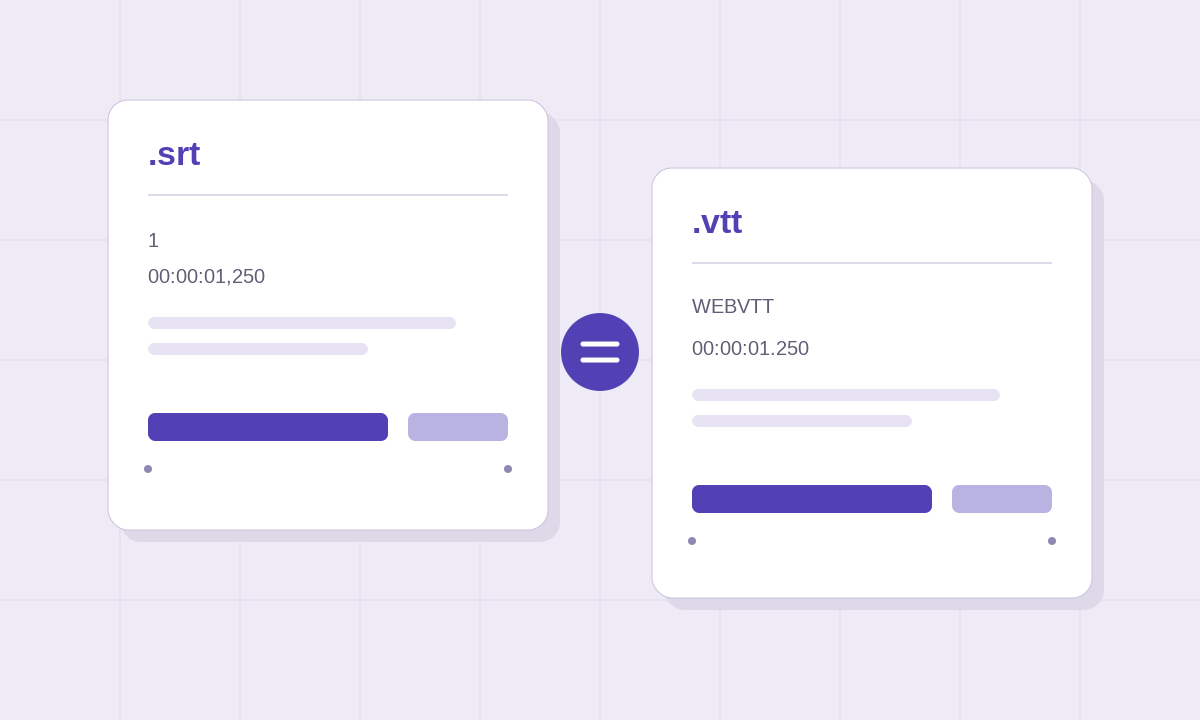
SRT uses cue numbers, timestamp lines and separated text blocks. Keep its structure intact when saving. A blank line inserted inside a cue may be interpreted as a boundary. Formatting pasted from a rich-text document may introduce unexpected characters. Save an actual plain-text SRT, not an HTML or word-processing document with a renamed extension.
Preserve UTF-8, especially for accented text and Arabic. Keep logical character order; do not reverse Arabic letters to mimic their visual position. Reopen the saved file rather than trusting the editor view alone. The SRT/WebVTT guide explains why changing an extension is not a format conversion.
Deliver a checked revision
Compare a short list of changes against the original: corrected names, changed negatives and every moved cue. Replay the beginning, an edited middle section and the ending with the exact video. Keep a note of unresolved passages. A reviewer should know what was checked and what remains uncertain, not merely that the file was “cleaned up”.
Use the readable-caption workflow for broader review and the audio/video guide when starting from a new recording. Subtitle editing improves a draft; it does not establish that the speaker’s claims are true or grant permission to redistribute their recording.