Transcribana
Audio Transcription to Text
Transcribe audio recordings to text on your own device. Review the transcript and export TXT, SRT, VTT or JSON without uploading your audio.
Start transcribingStart transcribing
Best supported on current desktop Chrome. Codec support, speed and memory vary by browser and device. Mobile transcription is not guaranteed.
Drop an audio or video file here
Interviews, meetings, lectures, and everything worth keeping.
Audio and video files are processed locally in your browser.
Supported file formats
MP3, WAV, M4A, AAC, FLAC, OGG, OPUS, MP4, MOV, WebM, MKV, M4V and 3GP with supported audio codecs. Files are checked locally. AVI, WMA and MPEG/MPG program streams are not supported. Codec support varies by browser.
Transcription runs locally in your browser. Your audio and video are not uploaded to our servers.
Auto Detect uses the opening audio to choose one spoken language. Accuracy varies by language and recording. Amharic transcription is currently unavailable because it can produce incorrect text. Review every transcript against the recording.
Advanced settings
Models download on first use. A loaded model is reused; change model or processing mode to release it.
Choose a recording to get started.
Progress will appear here.Your words, ready to use.
Document edits apply to copied text and TXT. Subtitles and JSON preserve the original timed transcription.
Processing details
Timestamps are model estimates. Total RAM and GPU memory are not available to this page; use your browser’s task manager.
Arabic uses a dedicated model with about 1.33 GB of weights and CPU/WASM processing. The first run may take several minutes. General model and GPU choices do not change the Arabic model.
Transcribe audio to text free of charge, then review it
To transcribe an audio recording to text, choose a local file and its spoken language, or use Auto Detect. Model downloads may be required before local processing starts. Check names, numbers and missed words before copying or downloading your edited TXT. Share can pass that text to an app you choose; it does not create a public link. For audio translation, first transcribe the speech, then translate the resulting text. This is not live interpretation or translated audio output. Translation on phones can still fail; save the original result and use a computer for demanding work.
Before you start
Start with the clearest recording you have. The app opens the primary audio track and checks whether your browser can decode it. Stereo is mixed to mono for recognition; speaker names are not assigned automatically.
A workflow that fits your file
Use this workflow for interviews, lectures and podcast recordings. PCM WAV, MP3, M4A/AAC, OGG and FLAC have tested decoding paths in desktop Chrome. Keep the original recording for checking names and quotations.
Review and use the result
After transcription, edit the readable document or review local correction suggestions. Copy Text and TXT follow your selected text version. SRT, VTT and JSON preserve the original segments.
Which audio files can I transcribe?
MP3 and PCM WAV are useful starting points. M4A is a container: a typical AAC voice memo differs from an unsupported codec in the same extension. AAC, FLAC and OGG decoding depends on the actual codec and browser. Choose the original file first; converting formats cannot restore unclear speech. If opening fails, read the error before attempting another export.
For a phone note, follow the exported voice-memo workflow. For long teaching recordings, see lecture review and resource limits. MP3-to-TXT, WAV-to-text and M4A-to-text use this same local file workflow; they are not separate recognition engines.
How it works
Upload
Choose an audio or video recording from your device.
Transcribe
Select the spoken language and let the required model load.
Edit
Review the words against your recording and edit the readable text.
Export
Copy text or download TXT. SRT, VTT and JSON preserve the original timed result.
Your recording never needs to leave your device.
Speech recognition and text checking run locally. The website and model files still need network access. Hosting and model providers can receive ordinary connection information; they do not receive your recording through this tool.
Understand local processingQuestions, answered
Does my recording get uploaded?
No. The browser reads and transcribes it locally. Website assets and model downloads use the network separately.
Can I use it offline?
A model already loaded in an open page can be reused offline. Reloading, switching models or clearing storage may require network access.
Will text corrections change my subtitles?
No. Copy Text and TXT use the selected document version. SRT, VTT and JSON keep the original timed transcription.
Related tools
Useful guides
Arabic Transcription: Review Dialect, Meaning and Subtitles
A practical Arabic review workflow for dialect words, names, negation, numbers and mixed-direction text, without silently rewriting the speaker.
Audio and Video to Text: A Complete First-Recording Workflow
Take a local recording from file selection to a checked transcript. Choose the language, review important words and save the right text or subtitle export.
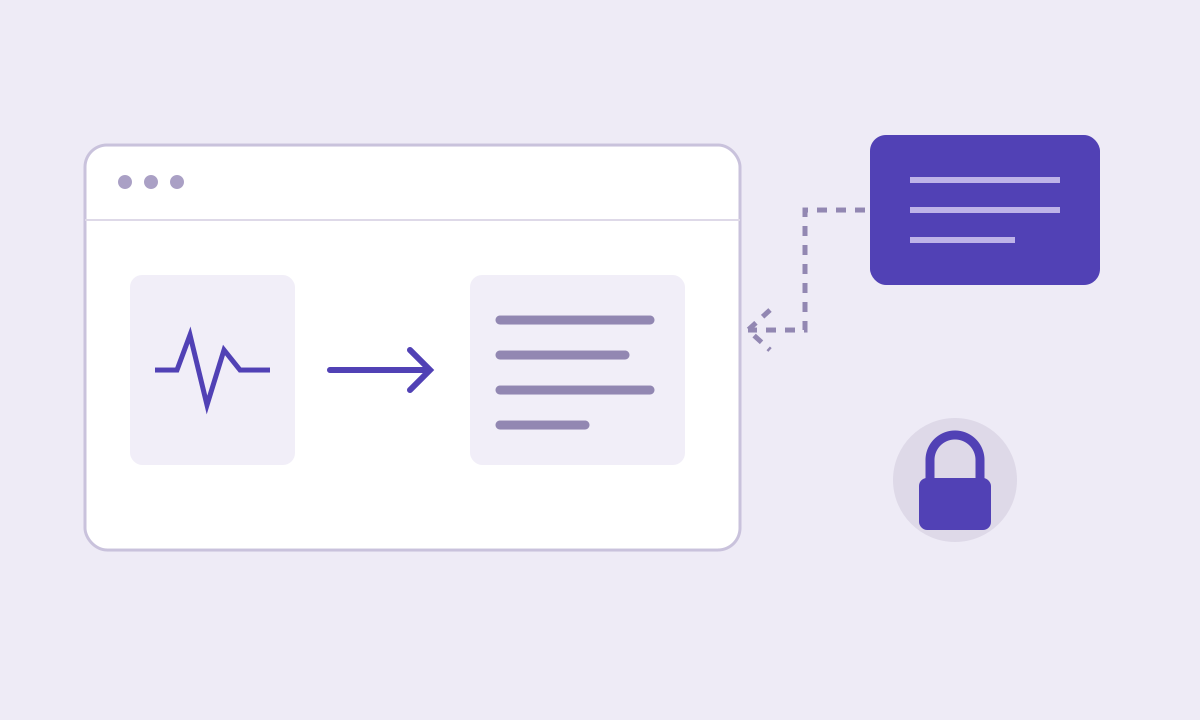
Browser Transcription Privacy: What Leaves Your Device?
Separate local media processing from model downloads, optional analytics and browser storage. Understand what Transcribana keeps local and what still uses the network.
Review a French Transcript Without Changing Its Meaning
Check French names, numbers and negation against the recording. Separate recognition errors from stylistic edits and review suggestions deliberately.
Record Clearer Audio for Transcription
Prepare an interview or lecture recording with a listening test, a practical preflight checklist and a plan for checking uncertain words.
Audio or Video Won’t Transcribe? Diagnose the Problem
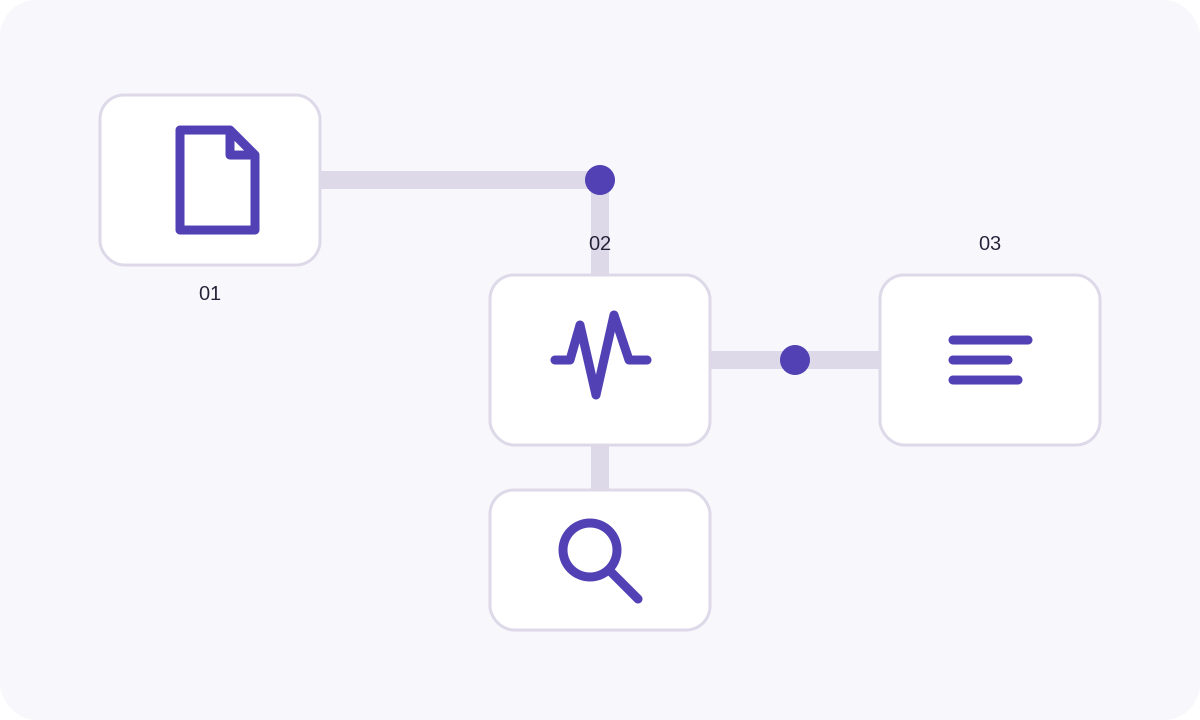
Work from the symptom: file errors, model loading, wrong words, slow processing or unexpected exports. Try safe checks without risking your original recording.
How Speech Recognition Works—and Why Fluent Text Can Be Wrong
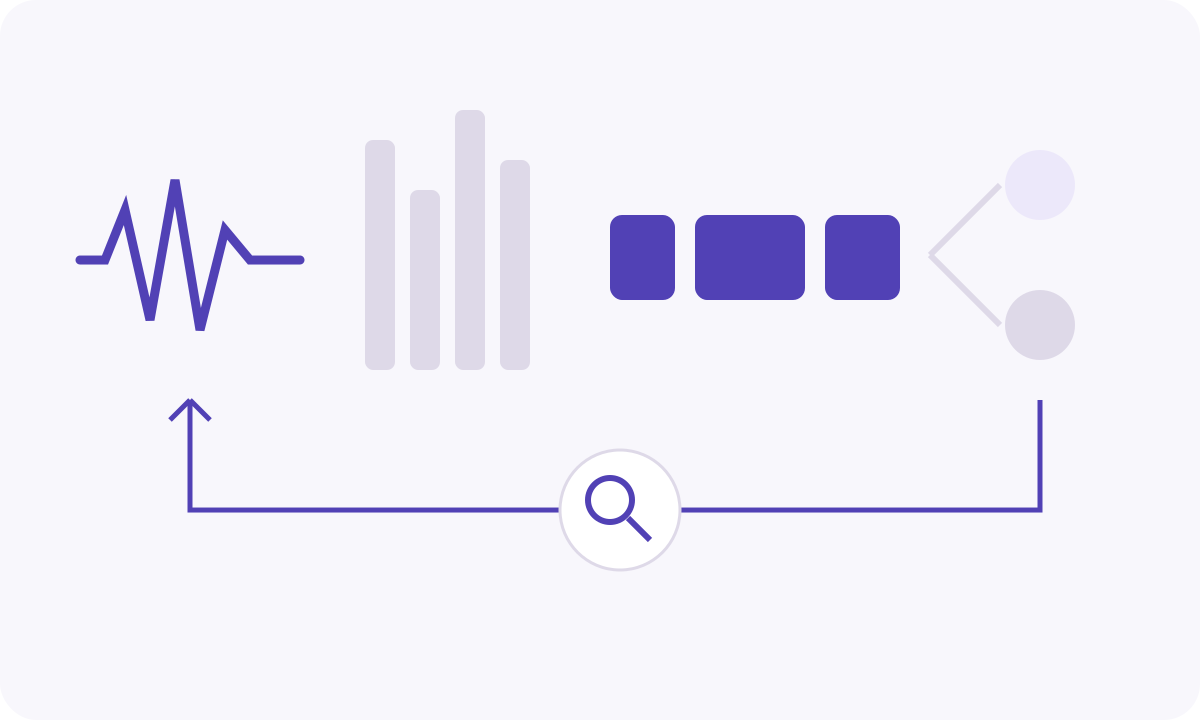
Follow a recording through audio preparation, model prediction and human review. Understand language detection, timestamps and the limits of automatic transcription.
From a Lecture Recording to Study Notes You Can Check
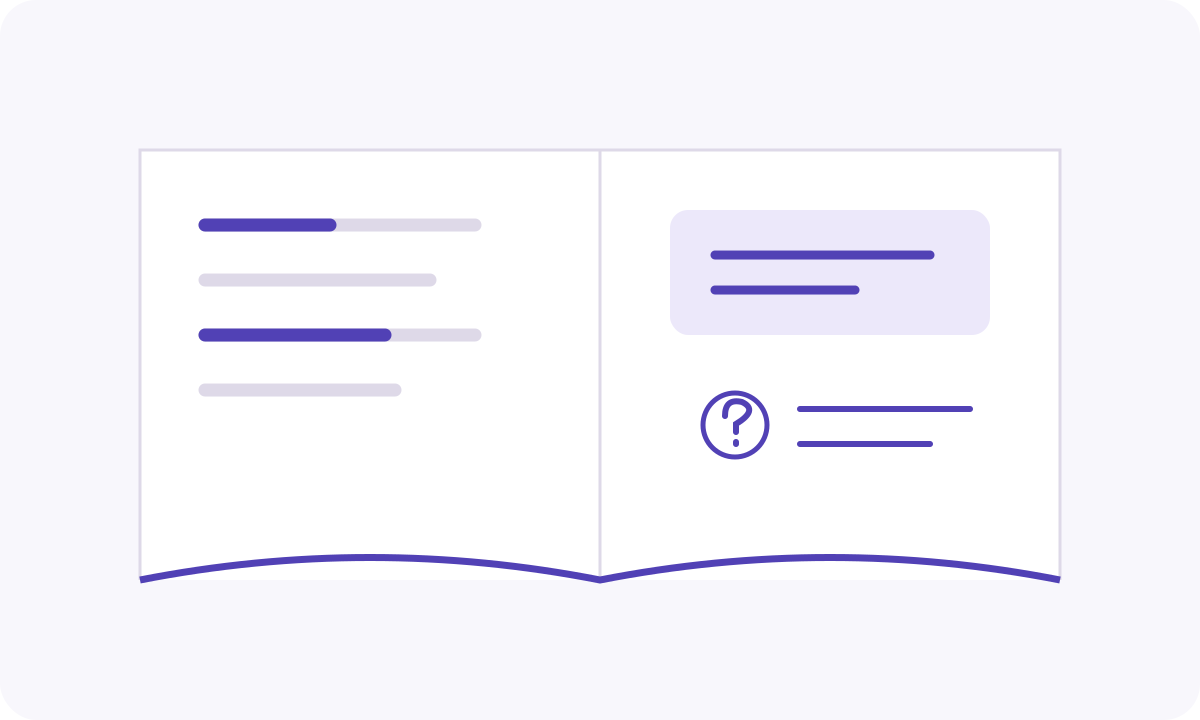
Turn a reviewed lecture transcript into your own explanations, questions and source references. A practical manual workflow, without treating recognition as understanding.
Review Meeting and Interview Transcripts Without Changing the Meaning
Check decisions, quotations, names and commitments against the recording. Use a manual review log that separates what was said from what you inferred.
Publish a Podcast Transcript That Matches the Episode
Choose the right audio version, verify voices and quotations, prepare a readable transcript and check the final page. A manual publishing workflow for podcasters.
Transcription vs Translation: What’s the Difference?
Understand when to transcribe speech, when to translate text or subtitles, and how each workflow handles language, timing, editing and review.
Speaker Labels in Transcription: How to Identify Speakers Manually
A practical method for labeling speakers in a multi-person transcript, including formatting, overlap, pseudonyms and the limits of automatic diarization.
Common Transcription Errors and How to Correct Them
Recognise the predictable mistakes in automatic transcripts — names, numbers, negation, homophones and invented text — and correct them without changing meaning.
Transcribing Multilingual Recordings: Language Switching and Review
Choose one recognition language, split genuinely bilingual sections, review quoted foreign phrases and translate only after transcription.
Transcript Quality Assurance: A Client-Ready Review Workflow
Define acceptance criteria, sample the risky passages, grade errors and deliver a versioned transcript with a clear review log.