A downloaded subtitle file is not a new video. It is a small text document that a player displays alongside a recording. Keeping these files separate lets you correct or replace the subtitles without rendering the video again. This guide covers desktop playback in VLC, not burning text into an MP4, publishing captions to a platform or translating speech.
Begin with the right recording and subtitle file
Keep the exact recording used to create the subtitles. A shortened introduction, an inserted advertisement or a different cut can move every later cue. Put a copy of the SRT beside the video in a clearly named project folder. For your own organization, you might name them lesson-review.mp4 and lesson-review.srt. Matching names are an organizational aid here, not a guarantee that every player will load them automatically.
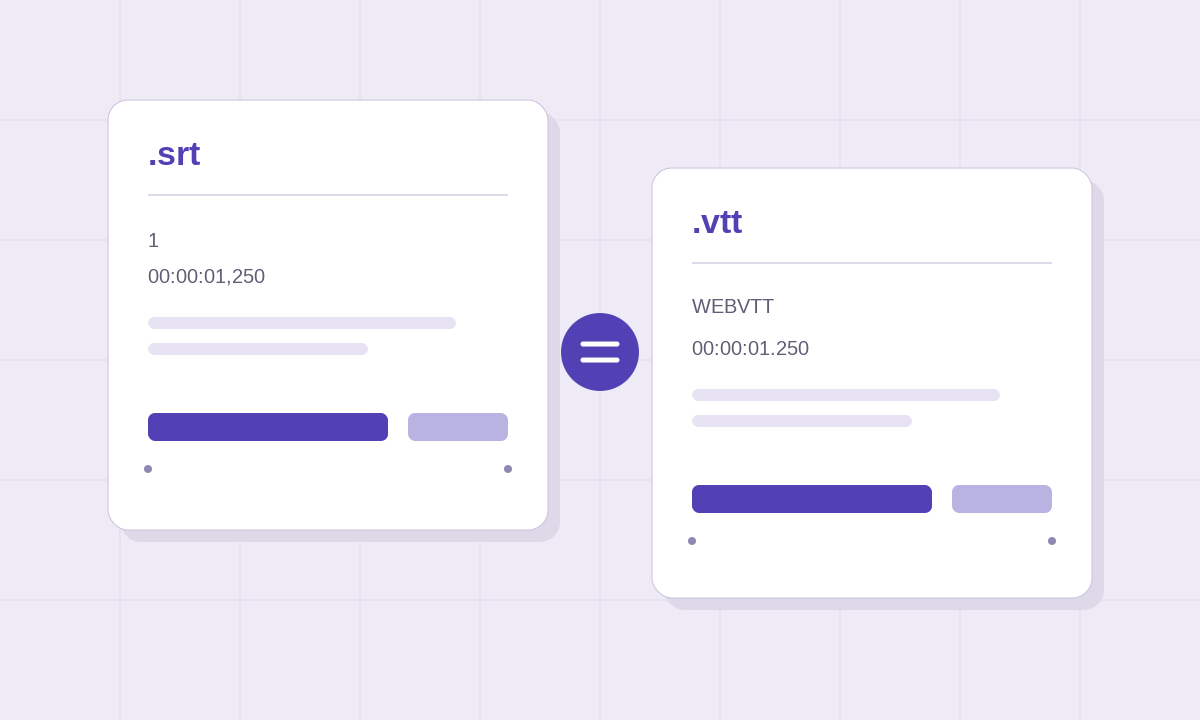
Transcribana currently exports subtitles with a fixed filename. Rename your downloaded copy yourself if useful, and keep its .srt extension. Renaming a TXT document to .srt does not create timestamps. If you have only prose, return to the recording and create timed subtitles. The SRT and WebVTT guide explains the difference between the formats.
Load the subtitle explicitly
The VLC desktop 3.0 documentation describes opening the media through Open Multiple Files, enabling the separate subtitle-file option and choosing the SRT. Use the subtitle track controls to check which track is active. Menu names vary by system and version; these are desktop instructions, not verified mobile steps.
Choose a passage that contains speech rather than judging the result during a silent opening. If another subtitle track is already embedded in the video, make sure you are reviewing your intended external file. Record which video and subtitle versions you selected so a later correction does not accidentally use an older download.
Separate a timing problem from a text problem
Use three short checkpoints: near the beginning, near the middle and near the end. In this invented example, a cue appears two seconds late at all three checkpoints. That suggests a fixed offset worth investigating. If the first cue is close but later cues drift progressively, one offset will not solve the whole file. A changed edit or a different source version needs investigation before you adjust dozens of cues.
VLC offers subtitle synchronization controls described in its synchronization documentation. Make a small adjustment, replay a known phrase and check the result. Treat this as a playback check; do not assume that changing a player setting rewrites the SRT you will send to another person.
A correctly timed wrong word is still a recognition error. Verify names, numbers and negatives against the sound. Transcribana’s readable-document corrections do not rewrite canonical timed subtitle exports. If subtitle wording needs revision, use a suitable external subtitle editor and verify the saved file with the recording again.
When nothing appears or characters look wrong
First confirm that the chosen file contains cue timestamps and text, not an HTML download page or an empty document. Then check that subtitles are enabled, the intended track is selected and playback is inside a cue’s time range. Avoid changing several settings at once: after each change, replay the same short passage so you know what helped.
For broken accented characters or Arabic text, preserve the original download and inspect a copy in an editor that displays its encoding. Transcribana creates UTF-8 text exports. Saving that text through another editor with a different encoding can damage it. Do not reverse Arabic letters manually to imitate screen order. Test the actual saved file in the intended player and keep text direction separate from timing.
Prepare a package someone else can verify
Send the correct video version and reviewed subtitle file together when sharing is permitted. Explain that the subtitle is a separate track. Check a fresh playback session before delivery rather than relying on a temporary synchronization adjustment. If the recipient needs subtitles permanently visible in the video, that is a separate video-rendering workflow, not this playback method or a current Transcribana export.
- Keep the exact source video.
- Select the SRT explicitly and check the active track.
- Review beginning, middle and end.
- Check wording separately from timing.
- Preserve UTF-8 characters and the original copy.
- Reopen the delivered files before sharing.
For a new recording, start with the audio/video transcription workflow. For readable cue text, continue with the caption review guide. These checks improve review discipline; they do not guarantee recognition accuracy or identical rendering in every player.