“The subtitles are out of sync” can describe several different faults. The words may appear uniformly late, drift further apart over time, fail only in one player, or belong to a different edit of the video. Each cause needs a different fix, and applying a global offset to a drift problem usually makes one end worse. This guide shows how to diagnose the pattern before changing timestamps.
Quick answer
First confirm that you are testing the exact video cut and subtitle file you intend to publish. Compare the first cue and the last cue with the audio. If every cue is early or late by about the same amount, a constant offset may be appropriate. If the gap grows over time, suspect a different video edit, a frame-rate conversion or a missing section, and do not hide it with one offset. If the file is correct in one player and wrong in another, check the player before editing the file.
Identify the pattern
On a narrow screen, scroll the table sideways to read every column.
| Symptom | Likely cause | Safe next step |
|---|---|---|
| Everything is late or early by the same amount | Constant offset between file and video | Measure the offset at the start and end; shift only if both match |
| Subtitles start correctly and drift later | Different edit, speed change or missing audio section | Compare durations; regenerate or retime the affected section |
| Only one player shows a delay | Player subtitle delay or rendering setting | Reset the player delay before changing the file |
| Some cues never appear | Invalid, zero-length or overlapping cue structure | Validate start and end times; fix the file structure |
| Words appear but are unreadable | Line length, reading speed or font/position issue | Review text length and player styling separately |
| Subtitles are in the wrong language | Wrong track or wrong file selected | Select the intended track; do not retime |
| The file works on desktop but not mobile | Player or encoding compatibility | Test the same file in the target mobile player |
A constant offset and a progressive drift are not the same defect. Measure both ends before deciding. If the first cue is correct and the last is late, a single shift cannot fix both. If both ends are late by the same number of seconds, a constant shift is a reasonable first hypothesis.
Check the source before touching timestamps
- Confirm the video file name, duration and edit version match the subtitle deliverable.
- Confirm the subtitle file is the intended language and format.
- Play the first minute and the last minute with the subtitle track enabled.
- Test the same file in a second player before editing.
- Check whether the player has a subtitle delay or synchronization setting.
- Keep an untouched copy of the original subtitle file.
A surprisingly common cause is a correct subtitle file paired with the wrong export. A trailer cut, a vertical social edit and a full episode may share a name but not a timeline. No amount of retiming makes a file reliable for a different cut without review.
Constant offset: shift, then verify both ends
If the first and last cues are both late by the same amount, a constant offset can move the whole file. Apply it in a subtitle editor, save a new version and re-check the first and last cues. Do not assume that a delay measured at the start remains correct at the end. The example below is a manual illustration, not a Transcribana timing operation.
1
00:00:01,000 --> 00:00:03,000
We started in March.

2
00:00:03,000 --> 00:00:05,500
Not in March — April.
Transcribana exports estimated cue times and reports invalid timing rather than inventing replacement values. It does not provide a visual offset or retiming editor. Use an external subtitle editor for a deliberate shift, then test the exported file in the destination player.
Progressive drift: compare the timeline, not just the text
If the gap grows, the subtitle file and the video probably do not share the same timeline. Common causes include a different edit, a speed conversion between frame rates, a missing or duplicated audio section, or a file assembled from separate recordings. Compare the total duration and a few landmarks in the middle, not only the opening.
A speed conversion can produce slow drift: a 24 fps production played at 25 fps, or the reverse, changes the relationship between clock time and picture. A single global offset will not repair a speed change. If the timeline itself is wrong, regenerate subtitles from the correct cut or retime the affected section in an editor after reviewing the audio.
Frame rate and timecode are not subtitle clock times
Video editors often display timecode as hours, minutes, seconds and frames. The frame field depends on the project rate, and some broadcast workflows use drop-frame counting at rates such as 29.97 or 59.94 frames per second. SRT and VTT timestamps are clock times with milliseconds, not frame numbers. Do not paste a frame timecode into a subtitle file and expect it to behave as a cue time.
If the deliverable requires frame-accurate synchronization, confirm the project frame rate and drop-frame setting in the editor that owns the timeline, then test the exported subtitles in the destination. Transcribana’s timed exports are intended for timed text, not as a replacement for a broadcast timecode workflow.
Player delay, styling and compatibility
Some players let the viewer add a temporary subtitle delay. That setting is useful for diagnosis but is not a repair: another viewer will see the original offset. Reset the player delay before judging the file. Also separate a timing problem from a styling problem. A cue can be correctly timed but unreadable because it is too long, positioned off-screen or rendered in a font the player does not support.
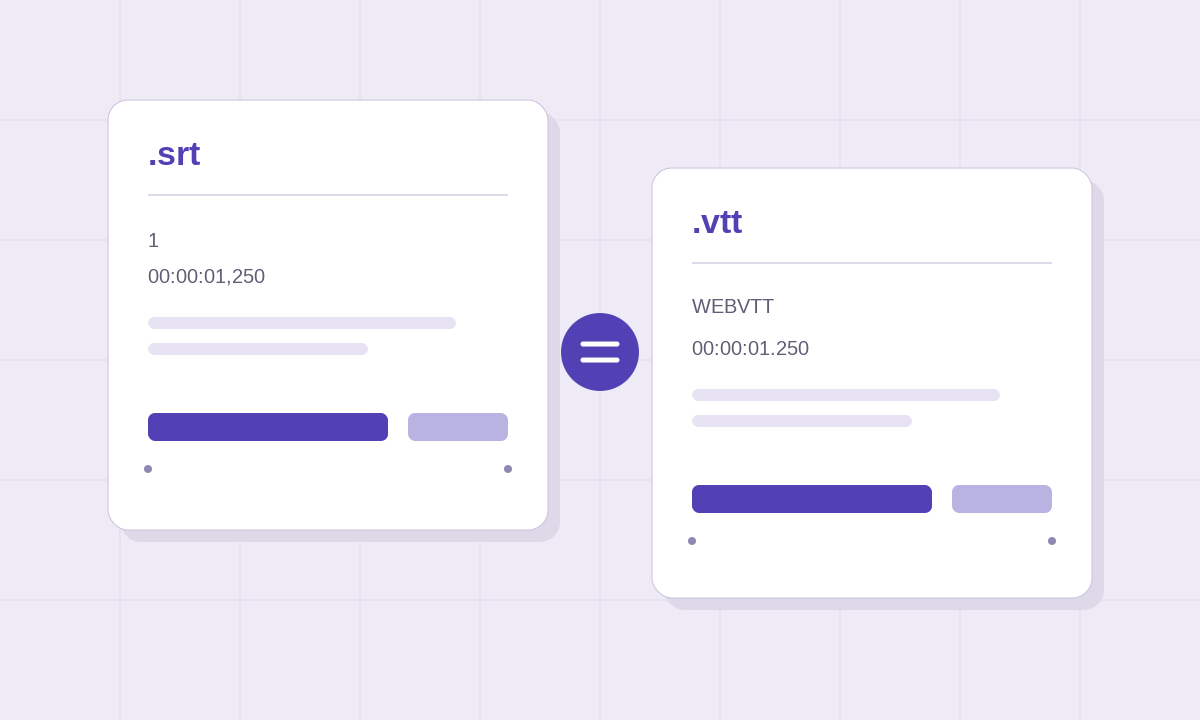
If the file works in one player but not another, test format and encoding next. SRT uses a comma before milliseconds; WebVTT uses a period and begins with a WEBVTT header. A file saved with the wrong extension, a byte-order mark issue or an unsupported styling block may be ignored or rejected. Keep the plain timed text and remove unsupported advanced features before blaming the timing.
Cue structure that players silently drop
- Check for cues whose end time is earlier than their start time.
- Check for zero-length cues and cues that overlap in a way the player cannot display.
- Check that cue numbers or identifiers are present and ordered where the format expects them.
- Check that text is not empty and that line breaks are intentional.
- Check the first and last cue after every export.
- Test the final file, not an intermediate draft.
A player may skip an invalid cue without showing an error. If only some lines are missing, inspect the cue structure before changing the global timing. The timestamps and timecodes guide explains the formats and the difference between clock time and frame timecode.
When to regenerate instead of repair
Regenerate when the subtitle file belongs to a different video cut, when a large section of audio is missing or duplicated, when the language is wrong, or when drift is too large to correct confidently. Repair a file when the structure is sound and the problem is a measured constant offset or a small number of cue boundaries. Do not stretch an entire file to hide a timeline that no longer matches the recording.
For safe editing, read edit an SRT file without losing its timing. For format differences, see SRT vs WebVTT. For playback checks, use play a video with SRT in VLC. For caption readability, read from automatic subtitles to captions people can follow. If the source recording will not transcribe, use the troubleshooting guide instead of changing subtitle times.