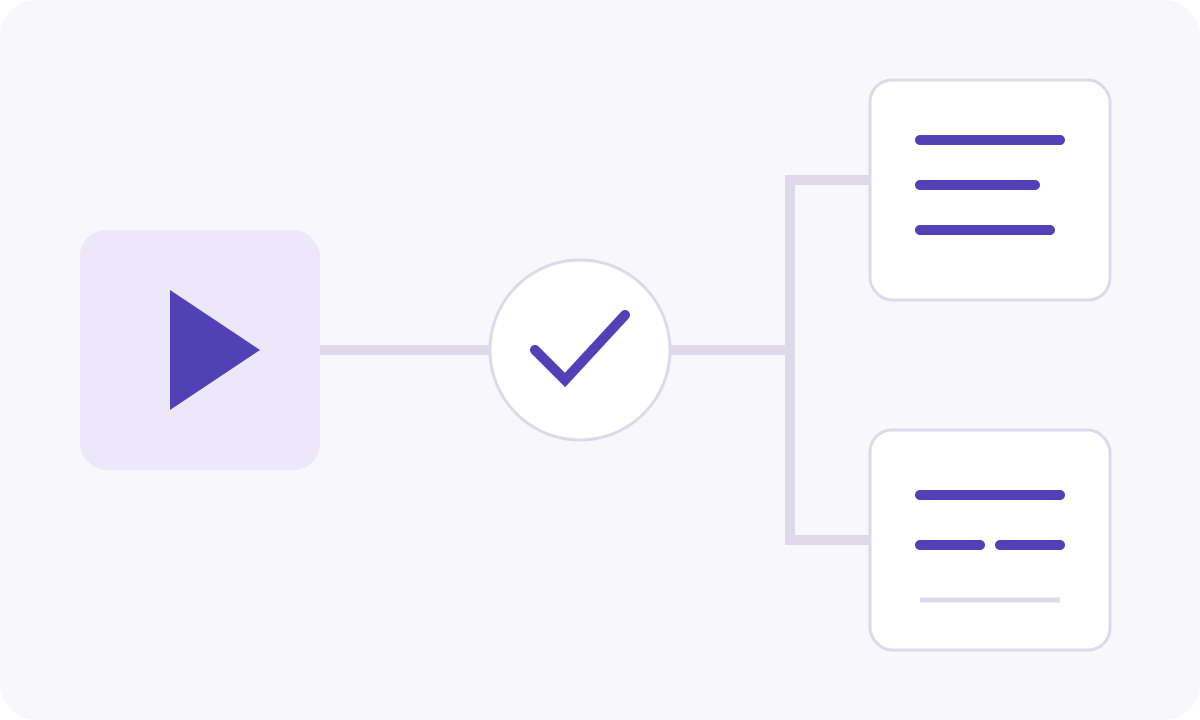
Start with a recording whose contents you can check. The useful outcome is not simply a page of words: it is a transcript you have reviewed and saved in the form your next task needs. This walkthrough follows a hypothetical interview from a local file to a reading copy or subtitle track. It does not promise a completion time or automatic publication.
Decide what you will deliver
For reading or sharing notes, a text document may be enough. For captions, the words also need times that match the media. Decide this before editing: Transcribana keeps the readable document and canonical timed segments separate. Making the document look right does not automatically revise the subtitle file.
On a narrow screen, scroll the table sideways to read every column.
| Your next task | Useful output | What still needs checking |
|---|---|---|
| Read or quote an interview | Copy Text or TXT from the selected document version | Words, names, uncertainty and whether your edits preserve the speaker’s meaning. |
| Display subtitles with a video | SRT or VTT, according to the destination | Original segment text, timing, line readability and the actual player’s display. |
| Carry segment data into another workflow | JSON | The receiving system’s requirements and the canonical segment values; JSON is not a project backup of every edit. |
Prepare one local file
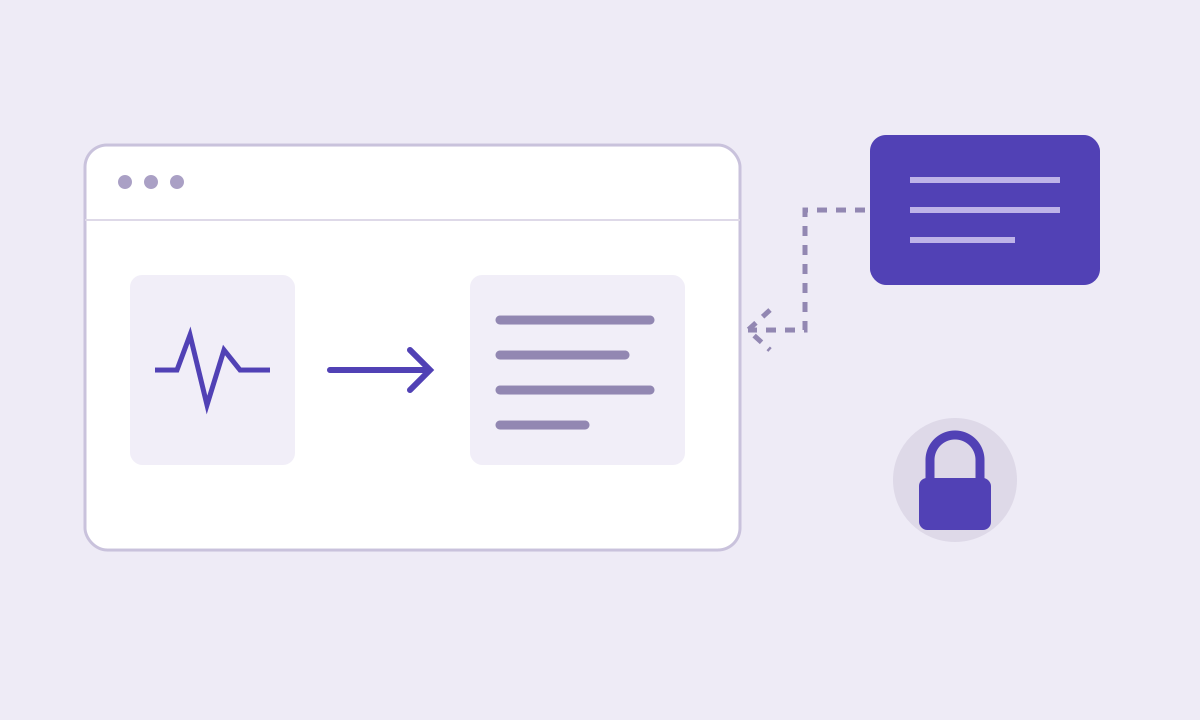
Open audio transcription for a recording or video transcription for a video with speech. Select or drop the file from your device. For video, the app reads a supported audio track locally; you do not need to upload the video to an audio-extraction service first. This workflow accepts files, not a pasted streaming link or live microphone dictation.
Play the actual file before starting. Check that it contains the expected conversation and audible voices. An extension such as MP4 identifies a container, not every codec inside it. A browser may reject audio that another media player can play. Keep the original and use the troubleshooting guide if the file cannot be decoded; changing the filename extension is not conversion.
Choose the spoken language and start
Select the language actually spoken when you know it. Auto Detect can help when you do not, but an unclear opening or a recording that changes language needs extra review. Changing the website language changes the interface, not the recording’s words. The task is transcription in the original language, not a request to translate it.
Start Transcription and watch the status. First use may require model and runtime downloads before recognition can begin. The computation happens locally, so the device, browser and available resources affect the wait. A model download is not a recording upload. For the network and storage distinctions, read browser transcription privacy. Do not assume that a cached model makes every future visit work offline.
Read with the recording beside you
For the hypothetical interview, first locate the passage you intend to quote. Replay it and compare the words, not just their spelling. A fluent sentence can omit “not”, confuse a quantity or substitute a plausible name. Mark unresolved uncertainty in your working notes; a grammatical sentence is not evidence that the speaker said it.
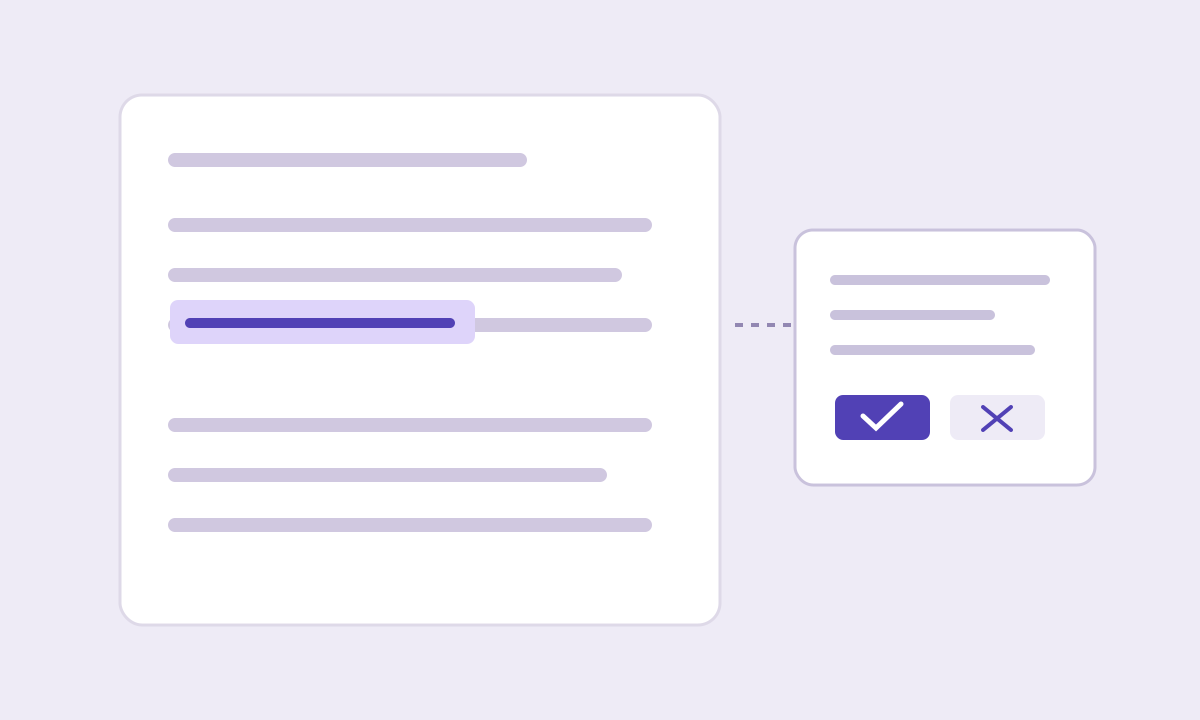
Use manual editing and the available writing suggestions deliberately. Accept a suggestion only when it suits the source and your editorial purpose; ignore it when it changes the intended meaning. Keep a faithful version when quotations matter. Reset to Original restores the original document, so save a revised copy you need before resetting. It is not a history of every editing step.
Review the timed result separately
Open the subtitle/timestamp view if you need timed text. Listen for where the speech begins and ends and inspect cue order and gaps. Model timing is an estimate, not a promise of frame-accurate alignment. An invalid or absent timestamp should not be made plausible by inventing a time. If corrections are required in a timed delivery, carry them into a suitable subtitle editor and check with the media.
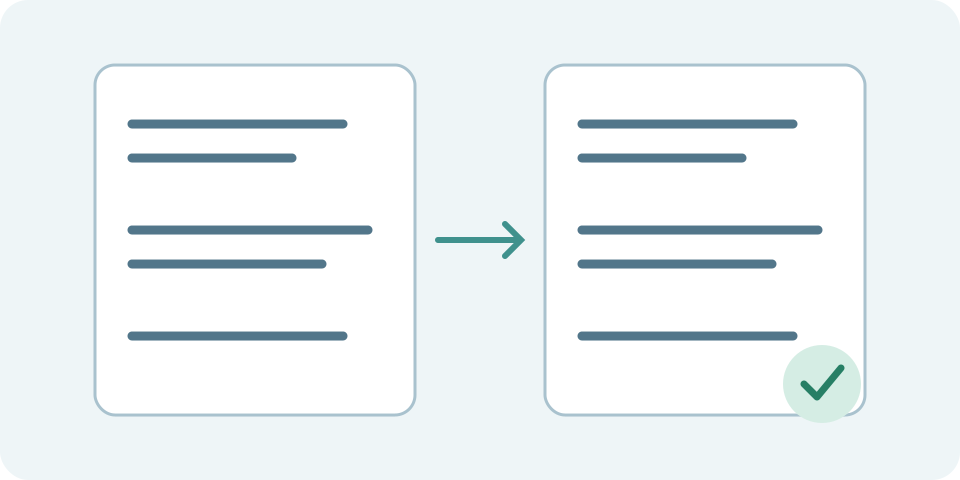
Copy Text and TXT follow the selected document version. SRT, VTT and JSON retain the canonical recognition segments rather than inheriting document edits. This separation is useful for keeping the original result, but easy to overlook. Read SRT versus WebVTT before choosing a caption format; downloading either file does not burn captions into the video.
Save and check the handoff
Download the intended version, then reopen the exported file. For a transcript, inspect the quote and non-Latin characters. For subtitles, test the file in the destination player with the recording. Keep the original media and label your reviewed copy clearly. Do not treat an open browser tab as an archive: save work before reload, cancellation or leaving the page.
- Choose text, timed subtitles or segment data.
- Listen to the actual local file.
- Select the spoken language deliberately.
- Allow for software loading and local processing.
- Review meaning before polishing prose.
- Check readable and timed outputs separately.
- Reopen the saved deliverable before sharing.